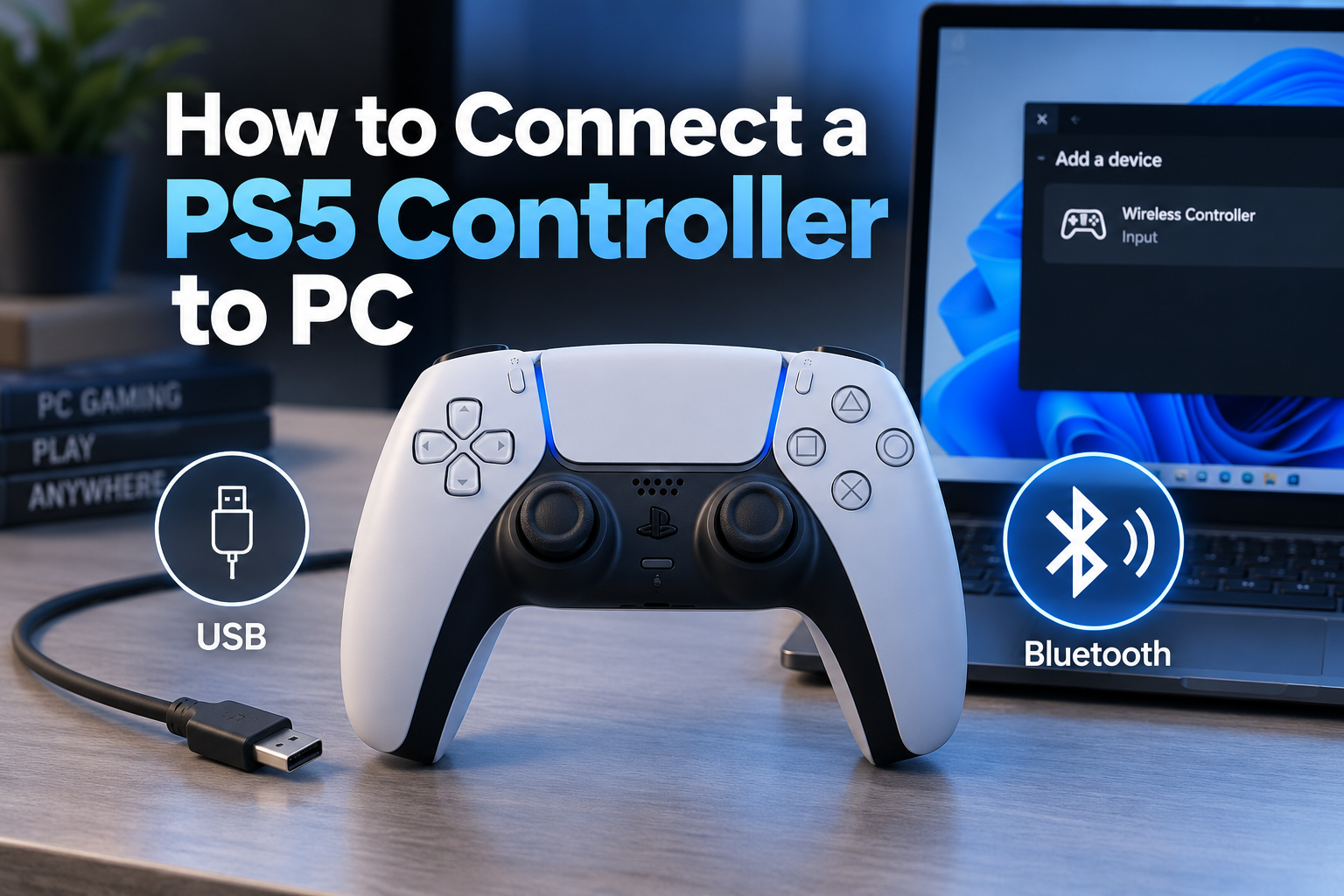
USB is the boring answer and it's also the right one if you just want it working in the next thirty seconds. Bluetooth is where almost every problem happens, mostly because of one naming quirk nobody warns you about. Here's the full setup, plus the specific points where people get stuck.
Wired: plug it in, that's genuinely it
Any USB-C cable works, though the one that came with your PS5 is fine if you can find it. Plug it into the controller, plug the other end into your PC, and Windows should recognize it within a couple seconds with no driver install needed. This also charges the controller while you play, and it's the only method with zero input lag added by a wireless layer, which matters if you're playing anything competitive.
The one thing worth knowing: a charge-only cable will power the controller's light bar but Windows won't register it as an input device. If it lights up but nothing happens when you press buttons, you're holding the wrong kind of cable, not looking at a broken controller.
Bluetooth: here's the part that confuses almost everyone
Hold Create and the PS button together until the light bar starts flashing rapidly, that's pairing mode. Open Bluetooth settings on your PC, add a device, and look for it in the list.
Here's the confusing part nobody mentions upfront: it will not show up as "DualSense" or "PS5 Controller." Windows lists it as "Wireless Controller," a generic name left over from the PS4 era that Sony never bothered updating for Bluetooth pairing purposes.
If you're scanning the list looking for anything with "PS5" or "DualSense" in the name, you'll scroll right past it and assume Bluetooth isn't finding your controller at all. This one naming decision is probably responsible for more "my PS5 controller won't connect to PC" posts than every hardware issue combined.
Select it, wait for pairing to complete, and the light bar should settle into a solid color instead of flashing.
Does DS4Windows or DualSenseX matter here?
Once it's connected, plenty of games and Steam titles detect it natively and just work. Where this gets confusing is anything that doesn't, and the two most common tools solve different problems.
DS4Windows translates the controller's input into an Xbox controller signal, which is the safest bet for older or non-Steam games that only know how to talk to Xbox pads. DualSenseX instead exposes the DualSense's own features directly, adaptive triggers, haptic feedback, the touchpad, to games and apps that specifically know how to use them.
If you just want broad compatibility, DS4Windows is the simpler choice. If you bought the DualSense specifically for the trigger resistance and haptics and want that to carry over to PC, you need DualSenseX, and even then only games with explicit DualSense support will use those features.
First time I set this up I assumed DS4Windows would somehow pass the adaptive triggers through too and spent a good twenty minutes confused about why nothing was happening. It doesn't work that way, and it's worth saying plainly here so nobody else loses that twenty minutes.
It shows connected, but nothing happens in the game
This is the single most common "it's not working" report, and it's almost never a pairing problem. Steam has its own controller configuration layer sitting between the OS-level Bluetooth connection and the game itself, and it can be misconfigured or fighting with a background tool like DS4Windows running at the same time.
Check Steam's own controller settings under Preferences, Controller, General Controller Settings, and make sure PlayStation Configuration Support is checked. If you also have DS4Windows running at the same time, that's frequently the real conflict. Both are trying to translate the same input at once and stepping on each other. Close one and test again before assuming anything is broken.
For non-Steam games specifically, the controller needs to either be natively supported by that game's engine or routed through DS4Windows as an emulated Xbox pad. A game with no native PlayStation controller support and no translation layer running simply won't see it, connected or not.
My PC doesn't have Bluetooth. What now?
A USB Bluetooth adapter, plugged into any open USB port, solves this for around ten to twenty dollars. After plugging it in, Windows will typically install a driver automatically, though some cheaper adapters need a driver downloaded manually from the manufacturer's site first. Once that's done, follow the same pairing steps above exactly as if Bluetooth were built in.
Or skip the adapter entirely and use the wired connection. If you're mostly sitting at a desk anyway, weigh a cable against a fifteen dollar dongle rather than defaulting to wireless out of habit.
What about Mac or Steam Deck?
Mac support works over Bluetooth using the same Create-plus-PS-button pairing sequence, and macOS lists it under the same generic "Wireless Controller" name Windows does, so the naming confusion isn't a Windows-only problem. Native game support on Mac is thinner than on PC though. Fewer Mac titles bother with controller support at all compared to their Windows versions.
Steam Deck handles it the smoothest of the three. Pair it the same way through the Deck's Bluetooth settings, and Steam's own controller layer, the same one running on a Steam Deck as on a PC, takes over from there without needing DS4Windows or DualSenseX at all. The Deck's version of SteamOS already has PlayStation controller support built in at the system level.
Getting adaptive triggers and haptics to do something on PC
This is where expectations usually need adjusting. Even with DualSenseX installed and running, adaptive trigger resistance and haptic feedback only activate in games that were specifically coded to use them, and that list is still fairly short outside of a handful of high profile Steam releases.
Plugging in a DualSense to an average PC game and expecting the same trigger resistance you'd get on PS5 usually ends in disappointment, not because anything's set up wrong, but because the game itself never asked for that feature to begin with. Checking a game's store page or patch notes for explicit DualSense feature support before assuming your setup is broken saves a fair amount of troubleshooting time.
Confirm it's reading correctly before you start playing
Connection succeeding doesn't guarantee every input is behaving the way it should, particularly over Bluetooth where a flaky connection can cause specific inputs to misbehave even while everything looks paired and fine. Before jumping into a match, run it through our PS5 controller test and check that both sticks read a clean center, every button registers on the first press, and the triggers show full range.
It takes under a minute and it's a much better way to catch a problem than discovering a stick reads slightly off center in the middle of a ranked match and not knowing whether it's the connection, the game, or the controller itself.
The small questions people ask after this works
Does the touchpad work on PC? Only in games that specifically support it, and even then it usually needs to be enabled through DualSenseX rather than working automatically.
Can I use two PS5 controllers on the same PC at once? Yes, pair both the same way, one at a time, and most games handle multiple controllers without extra setup.
Does it need to be charged, or can I use it wired while dead? A fully dead controller can be used over USB right away, no charge required first. The cable both powers and connects it at the same time.
Why does mine keep dropping every few minutes over Bluetooth even after all this? Honestly, sometimes it's just a flaky USB Bluetooth adapter and there's no clean fix beyond trying a different one or going wired. Not every intermittent Bluetooth issue traces back to a setting, and it's fine to stop troubleshooting and just plug in a cable at that point.