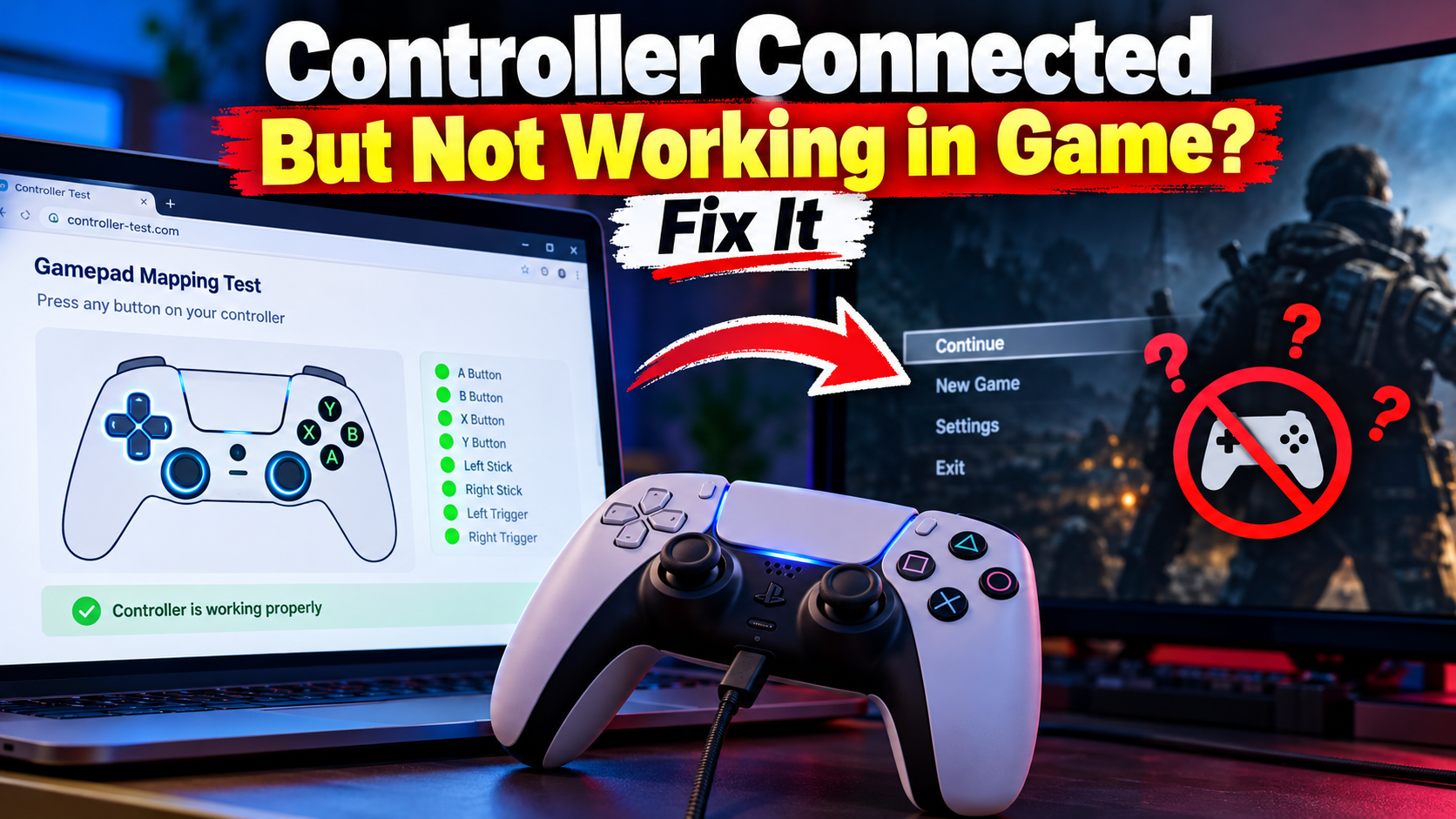
You plug in the controller. Windows makes the little connection sound. You open a controller tester in the browser and every button lights up, both sticks move, the triggers go all the way down.
Then you launch the game and nothing happens. The menu does not move. Or it moves, but the buttons are wrong. Or the character spins in circles like the stick is stuck.
Annoying as it is, that combination narrows things down. If the browser sees the pad working, the hardware is probably fine. The fault sits somewhere between the controller and the game, and that gap has only a few places to hide.
Below is the order I would check them in, cheapest first. Most fixes take under a minute.
first, make sure the controller really is fine
Skip this and you can lose an hour fixing the wrong thing.
Open the gamepad mapping test and press every button once. Then run the stick drift test with your hands off the sticks.
If a button does not register there, or the stick reads far off center, the game is not your problem. Start with the setup guide or, for a worn stick, the calibration tool.
If everything reads clean, keep going. The rest of this post assumes the pad is healthy.
One more check before you move on. Look at the controller ID the mapping test shows. Write it down or leave the tab open. A few steps later it becomes useful.
the game wants a different kind of controller
This is the quiet one, and it explains a lot of "works everywhere except this game" cases.
Windows has two older ways for a game to read a controller. XInput is the newer, simpler one, built around Xbox style pads. DirectInput is the older, more general one that generic and older controllers use.
Microsoft's own comparison of the two is blunt about the cost of choosing one. A game that supports only XInput will not see legacy DirectInput devices at all. And in DirectInput, the left and right triggers act as a single axis instead of two separate ones, with vibration not available.
So a game written for XInput can ignore a controller that only speaks DirectInput. The reverse happens too, in older games.
What this looks like in practice:
- The game says no controller detected, even though Windows sees one.
- The sticks work but the triggers do nothing, or both triggers act like one button.
- Rumble never happens.
If your pad has a small switch on the back or underneath, usually marked X and D, try flipping it to X, then unplug and reconnect. Many third party controllers have this. The setup guide mentions the switch too, because it changes how the browser reads the pad.
For a controller with no switch, a program that translates it into an Xbox style pad is the usual route. That brings me to the next problem, because translators cause their own trouble.
two controllers are fighting over the game
This one catches a lot of PlayStation players on PC.
You install a helper like DS4Windows so the game thinks your DualShock or DualSense is an Xbox controller. It works. Then the game starts behaving oddly. Every press happens twice. The menu skips two items at a time. Or the game picks the real controller instead of the pretend one.
The reason is simple. Now your PC has two controllers to show the game: the real PlayStation pad, and the Xbox style copy the helper made. Some games read both.
One developer replying on an itch.io thread described a PS4 controller sending duplicate inputs in their game. One input came from the controller itself and one from DS4Windows. Their fix was to install HidHide from the DS4Windows settings.
HidHide is a driver that hides the real controller from games, while letting only the programs you choose still see it. The setup guide for HidHide walks through marking your controller as hidden and adding DS4Windows to the allowed list.
A few things from that guide are easy to miss:
- If your controller can connect over Bluetooth too, reconnect it that way and hide that entry as well. It shows up as a separate device.
- If you move the DS4Windows folder later, the allowed list breaks and you have to add it again.
- Xbox controllers may stay visible even after you mark them hidden. The guide lists this as a known limitation.
To check it worked, open the Windows Game Controllers panel (press Windows plus R and type joy.cpl). With the real pad hidden and the helper closed, nothing should be listed.
If you only ever play on Steam, there is a simpler option, which is the next section.
steam is sitting in the middle
If you launch the game from Steam, Steam Input is probably involved. It takes your controller, applies a layout, and hands the game a processed version.
That is great when it works. When it does not, you get the exact symptom in the title: the controller is detected, and the game ignores it.
The things I would try, in this order:
- Right click the game in your library, open Properties, and look for the Controller tab. There is a per-game override for Steam Input. Try each option once, which usually means leaving it on the default, forcing it on, then forcing it off.
- In Steam's main settings, open the controller section and check that your pad type is enabled. Turning off support for your specific controller type is a common cause of "Steam sees it but the game does not".
- Click the controller icon on the game page and look at the layout Steam applied. If the layout is a keyboard and mouse template, the game never receives gamepad input at all.
The exact wording of these menus changes between Steam updates, so use the names above as a guide and not as a script. A walkthrough on Technobezz covers the same ground with a few extra steps, including remapping a single broken input.
There is one more trap for games you added with "Add a Non-Steam Game". Technobezz notes these can fail if the game blocks the overlay or needs an administrator launcher. If a game works when started on its own but not through Steam, that is the first place I would look.
Also worth a quick check: another program holding the controller exclusively. The setup guide lists this as a common cause of detection trouble, and a second launcher or remapping tool running in the background can do it.
Here is where the controller ID from earlier helps. If the browser test shows your pad as one thing, and the game's own input menu lists something different, Steam or a helper is changing what the game sees. That tells you where to look.
the game's own setting is wrong
Some games do not auto detect a controller when you plug it in. They read the setup at launch, so a controller connected after the game started is ignored.
Quit the game, plug the controller in first, then launch. It sounds too simple, but it costs nothing and it rules out a whole group of games that only look for controllers once, at startup.
Then open the game's input or controls menu and look for:
- an input device setting, often set to keyboard and mouse
- a controller type setting, such as Xbox, PlayStation or Generic
- a separate switch for controller support
On PC, a game sometimes shows PlayStation button icons for a DualSense but still ignores it, or shows Xbox icons for everything. That is the game's own detection, and it has nothing to do with the controller.
it works for a few minutes, then stops
If the controller works at first and then dies partway through a session, you are probably not dealing with a mapping problem. That pattern points to a dropped connection.
My Xbox disconnect post covers that case. For Bluetooth in general, connecting a PS5 controller to PC goes through pairing and the Windows settings that cause trouble.
A cable is the quickest way to tell the two apart. Use one that carries data, not a charge only cable, and try the game again. Works wired, fails wireless? Then the game and your setup are fine, and the wireless link is the thing to fix.
One last look-alike: if the game reacts to inputs you never made, like a menu drifting on its own, that is a different fault. My controller kept pressing buttons by itself covers it.
the short version
If you only want the checklist, here it is:
- Test the controller in the browser. Confirm it is healthy.
- Quit the game, plug the controller in, then launch.
- Check the X or D switch if your pad has one.
- Close any helper programs like DS4Windows and relaunch the game.
- In Steam, try each Steam Input override for that game.
- Look at the game's own input menu for device and controller type.
- Try a data cable.
Change one thing at a time. If you change three and it starts working, you will not know which one fixed it, and you will be back here the next time it breaks.
what I could not cover
There are things that vary a lot from game to game, and I cannot predict them. A few older games only read specific controllers. Some online games use anti cheat that interferes with helper programs. And I did not test every combination of controller, helper and launcher.
If you tried every step above and one particular game still ignores the controller, the game's own forum or Steam discussion page is usually the fastest place to find out if it is a known problem. People there are often running into the exact same thing.