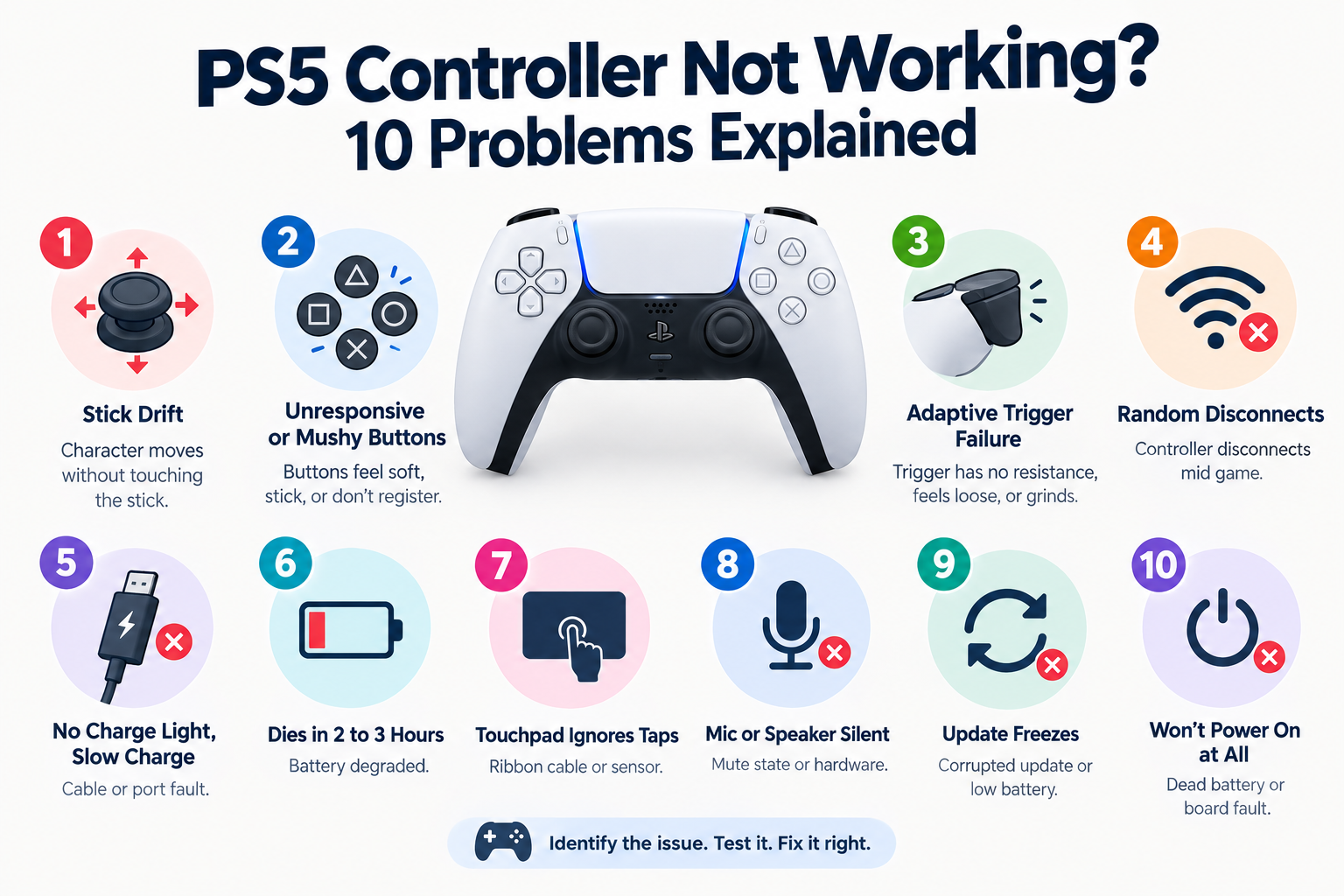
Most PS5 controller troubleshooting guides tell you what a problem looks like and hand you a fix. What they skip is the step in between: confirming you actually have the problem you think you have.
Stick drift and worn buttons can produce nearly identical symptoms during gameplay, and guessing wrong wastes time on the wrong fix. Below are the 10 most common DualSense problems, one bonus issue that rarely gets its own section anywhere, and a way to confirm each one before you start fixing anything.
Quick diagnosis
| Symptom | Likely cause | Confirm with |
|---|---|---|
| Character drifts without touching stick | Worn stick sensor | Center reading, at rest |
| Button feels mushy or skips presses | Debris or worn pad | Per button response test |
| Trigger has no resistance or feels loose | Motor or spring failure | Full pull range test |
| Random disconnects mid game | Interference or antenna fault | Signal consistency over time |
| No charge light, slow charge | Cable or port fault | Swap cable, retest |
| Dies in 2 to 3 hours | Battery degraded | Track runtime after full charge |
| Touchpad ignores taps | Ribbon cable or sensor | Direct tap test |
| Mic or speaker silent | Mute state or hardware | Audio settings, then test |
| Update freezes | Corrupted update or low battery | Retry at 50%+ charge |
| Won't power on at all | Dead battery or board fault | Charge 30 minutes, retest |
| One side vibrates louder | Rumble motor imbalance | Side by side motor test |
1. Stick drift
The character moves, the camera pans, or a menu scrolls without any input. This is the most reported DualSense issue by a wide margin, and it comes from how the analog sticks measure position. A small internal wiper moves across a resistive track as you tilt the stick, and that contact wears down with repeated use. Once the track degrades in one spot, the stick reports movement even when it is sitting dead center.
Cleaning around the base with compressed air and isopropyl alcohol resolves drift caused by dust or debris sitting in that contact area. It does nothing for drift caused by physical wear on the track itself.
The way to tell the two apart is to check what the stick reports while it is completely untouched. If it reads perfectly centered and only drifts under certain conditions, debris is a reasonable first guess. If it reads off center at rest with nothing touching it, that is wear, and no amount of cleaning changes that outcome. Our analog stick drift test shows this reading directly, with live coordinate tracking and a pass or replace verdict per stick, instead of making you infer it from how a game feels to play.
2. Unresponsive or mushy buttons
A face button, bumper, or D-pad direction stops registering consistently, or presses feel soft instead of crisp. Debris trapped under the button membrane is the most common cause, usually from food, dust, or skin oil working its way in over months of use. Less often, the conductive material under the button itself has worn thin from repeated presses and no longer makes a clean contact with the board underneath.
Powering off the controller and working compressed air around the button edge while pressing it repeatedly often dislodges light debris. A cotton swab lightly dampened with alcohol around the seam can clear buildup that air alone misses. If the button still fails to register cleanly afterward, the issue is the conductive pad, not surface grime, and that requires opening the shell to address.
Testing each button individually with the button mapping test, rather than noticing the problem mid game, is the only reliable way to know whether the fix actually worked or the fault has simply become less frequent.
3. Adaptive trigger failure
L2 or R2 feels loose, grinds during a pull, or has lost the resistance it normally provides in supported games. This mechanism relies on a small motor and gear assembly that physically pushes back against your finger, and that assembly takes more mechanical stress than almost any other part of the controller, especially in shooters where the trigger gets pulled hard and repeatedly.
Start by confirming the setting is actually enabled, both in the PS5 system menu and inside the specific game, since a trigger that never had resistance to begin with is a settings issue, not a hardware one. If the setting is on and the trigger still feels physically wrong, grinding, catching, or offering no resistance at all, that points to a damaged spring or worn gear teeth, and no reset or firmware update will restore mechanical parts that have already stripped.
Running the trigger through its full range in our PS5 controller test, which reads the analog adaptive trigger live, while feeling for inconsistency is a faster way to confirm this than trial and error across different games.
4. Connectivity drops
The controller disconnects mid session, refuses to pair, or drops signal intermittently even while sitting close to the console. Bluetooth interference from nearby phones, headsets, or other wireless controllers is the most common cause and the easiest to rule out. Corrupted pairing data and outdated firmware are next, followed by a damaged internal antenna, which is less common but does happen, particularly after a drop.
Reconnecting over USB and re-pairing clears most corrupted pairing states. Removing or powering down nearby Bluetooth devices for a few minutes rules out interference. If disconnects continue after both of those steps and a firmware update, the antenna itself is the more likely explanation, and that is a hardware fault rather than something a reset can fix.
Our polling rate test compares wired versus Bluetooth performance directly and shows report throttling in Hz, which is a more reliable signal than watching for lag during a match where drops and normal input delay feel similar.
5. Charging issues
No indicator light when plugged in, a charge that stops partway, or a controller that shows full charge but dies within minutes once unplugged. A surprising number of these cases trace back to the cable rather than the controller. Not every USB-C cable transmits data and power together, and a charge-only cable will power the controller without ever completing a proper charge cycle or supporting firmware updates.
Swapping to the cable that shipped with the console and trying a different port on the PS5 itself, rather than a hub or extension, resolves this more often than people expect. Clearing the charging port with compressed air addresses debris blocking the contacts. If charging still fails with a confirmed working cable and a clean port, the internal port or battery itself likely needs replacing, which means opening the shell.
6. Fast battery drain
A full charge that lasts two to four hours instead of the expected seven to eight points to either an aging battery or power hungry settings left at their default levels. Controllers from the earlier PS5 launch years are now old enough that battery degradation becomes a real factor regardless of how carefully they were used, since lithium batteries have a finite number of charge cycles no matter what.
Lowering vibration intensity, reducing trigger effect strength, and disabling the microphone when not needed all reduce draw meaningfully. If runtime does not improve after adjusting those settings, the battery itself has degraded and needs physical replacement rather than a settings fix. Tracking actual runtime after a full charge, rather than guessing based on how the day felt, gives a clearer answer than intuition.
7. Touchpad not registering
Taps and swipes stop working, or the touchpad registers phantom input with nothing touching it. This usually comes down to a loose internal ribbon cable connection, often following a drop, though moisture exposure and a cracked sensor underneath the pad surface are also possible.
A dry microfiber wipe across the surface clears surface grime, which occasionally accounts for inconsistent registration. If the touchpad stopped working suddenly, especially after an impact, a dislodged ribbon cable inside is the more likely cause, and reseating it means opening the controller. Our PS5 controller test includes a dedicated touchpad press check, which is one of the few issues on this list where a simple external clean rarely resolves the actual fault, so confirming the ribbon cable theory before opening the shell saves an unnecessary teardown.
8. Mic or speaker silent
No voice pickup, or no audio from the built in speaker in games that use it. The DualSense has a physical mute button near the PS button, and an unlit or wrongly lit indicator there is the first thing worth checking before assuming a hardware fault. Audio routing settings that send sound to a connected headset instead of the controller speaker are the next most common explanation.
Confirming the mute state, then checking the sound settings menu to ensure the controller output has not been overridden, resolves the majority of reported cases. If both check out and the mic or speaker still produces nothing, the component itself has likely failed and needs physical replacement.
9. Firmware update failures
An update that freezes partway, fails outright, or leaves the controller briefly unresponsive. This is almost always tied to an interrupted USB connection during the update, a battery level too low to safely complete the process, or a corrupted update file downloaded to the console.
Updating over a direct USB connection to the console rather than through a hub, and starting with at least half a charge, prevents most of these failures before they start. If an update does freeze, holding the PS button for an extended press forces a power off, after which reconnecting and retrying usually completes the process. A controller that remains fully unresponsive after this needs a reset through the internal pinhole button before another attempt.
10. Controller won't power on
No light, no response to the PS button, nothing. This is one of the more alarming symptoms because it looks identical whether the cause is a fully drained battery or a genuine hardware fault, and the two require completely different responses.
Leaving the controller on a direct USB connection for a solid 30 minutes without touching anything rules out the simple explanation of a battery drained past the point of immediately powering on. If there is still no response after that window, a reset through the pinhole button is the next step, followed by trying a different cable entirely before concluding the fault is internal.
Bonus: uneven rumble or haptic feedback
This one rarely gets its own section anywhere, but it shows up more than people expect. One side of the controller vibrates noticeably harder than the other, or haptic feedback feels flat and directionless compared to how it used to. Unlike drift or trigger wear, this is not something most players think to test for directly, since it is easy to attribute to a specific game's haptic design rather than the hardware itself.
The DualSense uses two independent haptic motors, one per side, and they can degrade or fail at different rates depending on how the controller has been used.
A controller that has spent more time in racing games, for instance, tends to load one motor harder than the other through sustained road feedback, while a shooter heavy usage pattern stresses both more evenly but for shorter bursts. Confirming this means firing the strong and weak rumble motors independently rather than relying on the overall feel during gameplay, since a strong motor on one side can mask a weak one on the other when both fire together during a normal game session.
If one motor consistently underperforms across multiple games and after a full settings reset, that points to the motor itself rather than anything software related, and no firmware update addresses a mechanical vibration component that has simply worn down.
Confirm before you fix
The pattern across all 11 of these is the same. Symptoms during gameplay are unreliable narrators. A stick that feels like it is drifting might just be a dead zone set too aggressively. A button that feels unresponsive might be registering fine and the delay is somewhere else entirely.
Running an actual diagnostic check from our full tools page on the specific component in question, rather than deciding based on how a match felt, is the difference between fixing the right thing on the first try and cleaning a part that was never the problem to begin with.